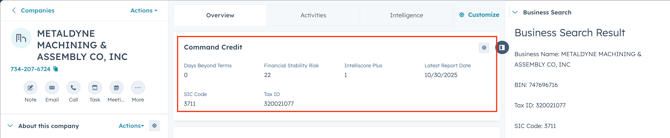
Once the Command Credit integration is installed, you can run credit checks directly from inside HubSpot without switching tools or leaving your CRM.
This article explains where, how, and when to run a credit check, and how to understand the results.
Where can you run a credit check?
Credit checks can be run from:
-
Company records – for assessing overall customer or account risk
-
Deal records – if your account has been customised for this
Your organisation may use one or both, depending on how your sales and finance processes are structured.
Step 1: Open the relevant record
Navigate to the Company record you want to assess.
Make sure the record contains the required identifying information (for example, business name or customer details), as defined during setup.
Step 2: Run the Business Search
At the top right of your Company records, you will see a 'Start Business Search' button.
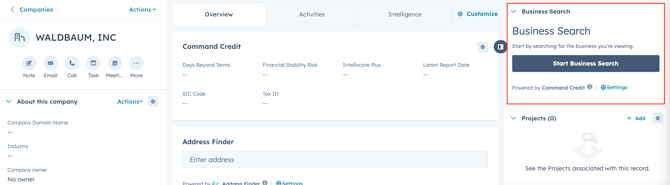
Click it to open the business search form, and then click 'Run Business Search'. Command Credit will then populate the business details.
Step 3: Run the Risk Dashboard
Once the Business Search has been done, you can trigger the Risk Dashboard. At the top right of the company view, click 'Run Risk Dashboard'. The results will show like this on the right hand side.
Step 4: Review the results in HubSpot
Once complete, the credit data is returned and saved to HubSpot properties on the record.
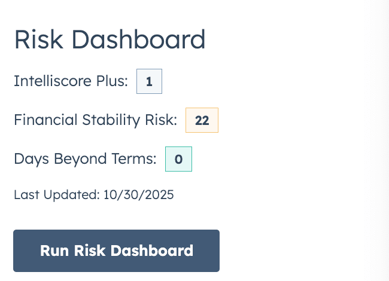
The middle column of the Company record will also be updated: